Configure Time Series

Once a time series model has been selected it can be configured using the Configuration Panel on the left side of the Define Time Series window. All changes to the model function made through this panel will be reflected immediately in the Formula Bar. The Configuration Panel consists of three main sections:
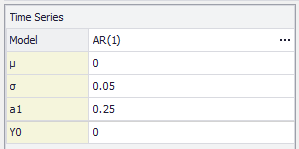
Figure 1 - Time Series Parameters

  • Time Series - Primary settings for the time series model function (Figure 1, right); these include the model being used and the parameter values, e.g. mean (µ), volatility (σ), autoregressive coefficient (a1), and initial value (Y0) for an AR(1) time series model (Figure 1, right).
  • Description - Provide a name for the time series model and set period labels.
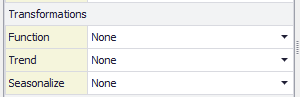
  • Transformations - Apply any transformation to define a non-stationary time series by adding trend and/or seasonality. See Time Series Transformations for more information.
  • General - Define, or update, the Excel range for the time series, and set synchronization.
  •  

Throughout the @RISK windows, the new More button ( ) indicates a menu or other window for selecting configuration options. For example, in the Define Time Series window the More button will open the 'Select a Model' window, where a different time series model can be selected.

Time Series Parameters

The mathematical definition of a time series function is set in the Time Series section.

  • Model Field - This field lists the time series model currently in use. Clicking the More button will open the Select Model window, where a new time series model can be selected.
  • Parameter Values - These fields detail the specific values being used in the time series; in addition to numeric values, parameter values can also use references to other Excel cells (including cells containing formulas or other @RISK distributions) enabling the creation of complex models. The number of available parameters will change depending on the time series model being used.

Description Properties

The Description fields are used to attach labels to a time series model. Similar to parameter values, cell references can be used for these configurations. The options available are:

  • Name - Range of cells that contain labels for each time series period. If no Name value is provided, @RISK will use the Automatic Names function.
  • Category - The Category value will appear as the header for the graph, as well as in the Model Window grouping periods of the time series defined.

Transformation Properties

Figure 2 - Time Series Transformations

The Transformation fields (Figure 2, right) are used to apply Transformation to the data values generated for a time series model. See Time Series Transformations for a complete discussion on using transformations.

General Configurations

The final section of the Configuration Panel is the General settings for the time series model. These settings control the number of elements in the series, the name of the series, and how the time series model results should synchronize.

  • Series Range - The range of cells that will include the time series model function; the default number of cells is 24, but this can be changed by modifying the Series range.
  • Synchronization - Define whether and how the time series should be synchronized to existing data - no synchronization, on the last, first or any value. See the @RISK function RiskTSSync for more information.

    If a synchronization option is selected, two additional options will be displayed:

    • Sync Range – Select the range for the historical data
    • Labels - Range of cells that contain labels for historical data set.